

This 2 minute trick will save you hundreds of dollars on your grocery bill
Decision Fatigue causes us to spend more than we normally would. This fast trick is saving me hundreds of dollars and hours of time--a win/win.


That is not clickbait and I’m not selling anything….
I have saved hundreds of dollars each month that I planned menus. When my kids were at home and I was working 2 jobs, this was a huge time saver for me, but now that our kids are grown, I have found myself slacking—and it made our grocery bill nearly double.
So, I decided to use the power of AI to create a simple menu and was so pleased with the results, I wanted to share it with you here.
Until a couple months ago I really knew nothing about AI, so if that is you, don’t worry. I am going to explain this very simply—I also made a step by step guide and a video.
I will show you the 4 simple step now, but first, if you found this helpful, please share this post with friends—especially those who are not on substack. It really helps support the mission of Decision Tree Learning. THANKS!!
The Steps:
This is the prompt I created. Copy and paste this in to a document [you can just highlight the prompt and right click or use your command/control keys]. Don’t worry if there are things you want to change, we will do that after you paste it in your document.
The PROMPT:
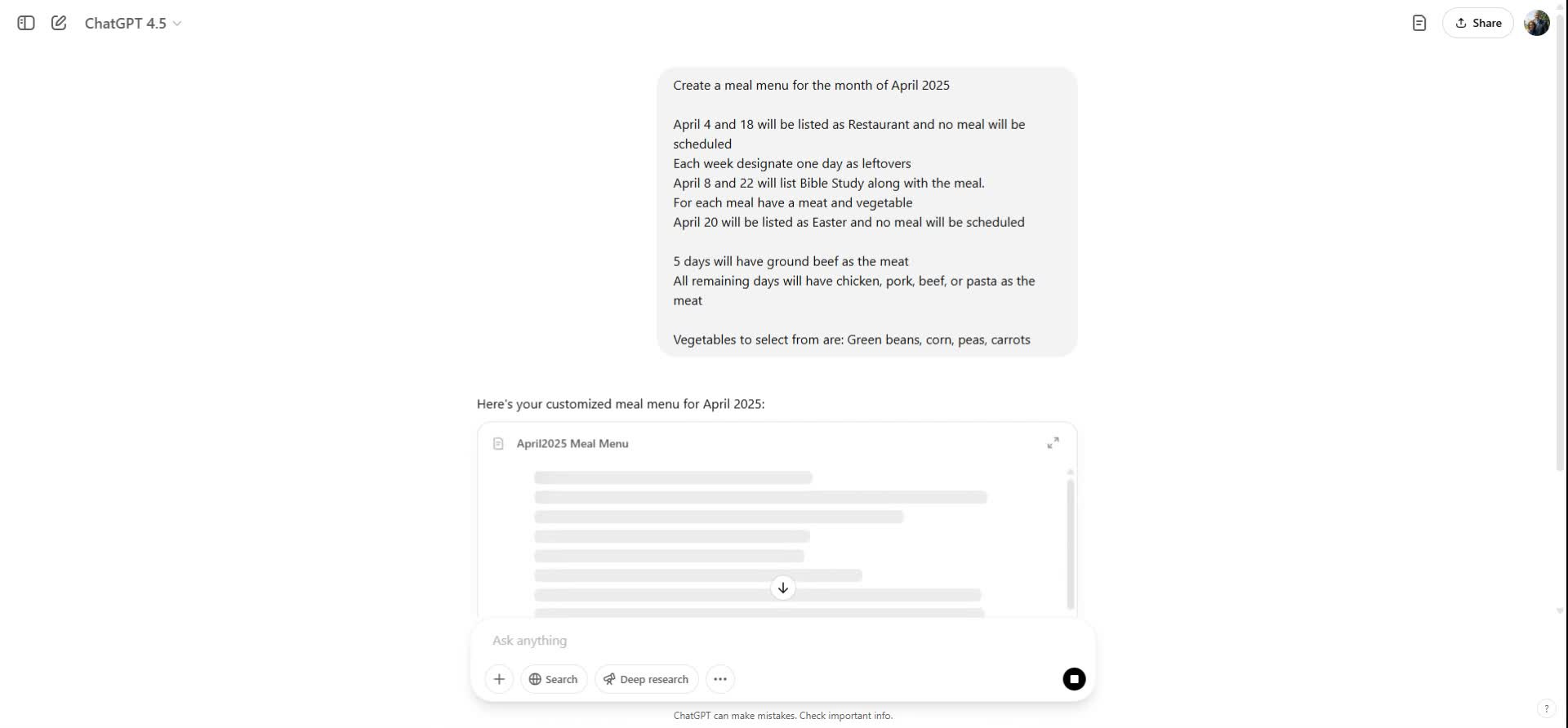
Create a meal menu for the month of (April 2025)
(April 4 and 18) will be listed as Restaurant and no meal will be scheduled
Each week designate (one day) as leftovers
(April 8 and 22) will list (Activity) along with the meal.
For each meal have a meat and vegetable
April 20 will be listed as Easter and no meal will be scheduled
(5 days will have ground beef as the meat)
All remaining days will have (chicken, pork, beef, or pasta as the meat)
Vegetables to select from are: (Green beans, corn, peas, carrots)
Customizing your prompt:
Change the parts in parenthesis. So, if you have activities like sports practice, you can indicate that as well as the meal, if that is helpful.
I designated set days for restaurant meals, but designated a number of days each month for leftovers. Change or delete what I have to fit your family’s needs.
Put in the meat and vegetables your family prefers.
You can even designate certain meats/main dishes for a specific number of days.
Don’t overthink this. It should take under a minute to adjust the prompt.
Make your Menu
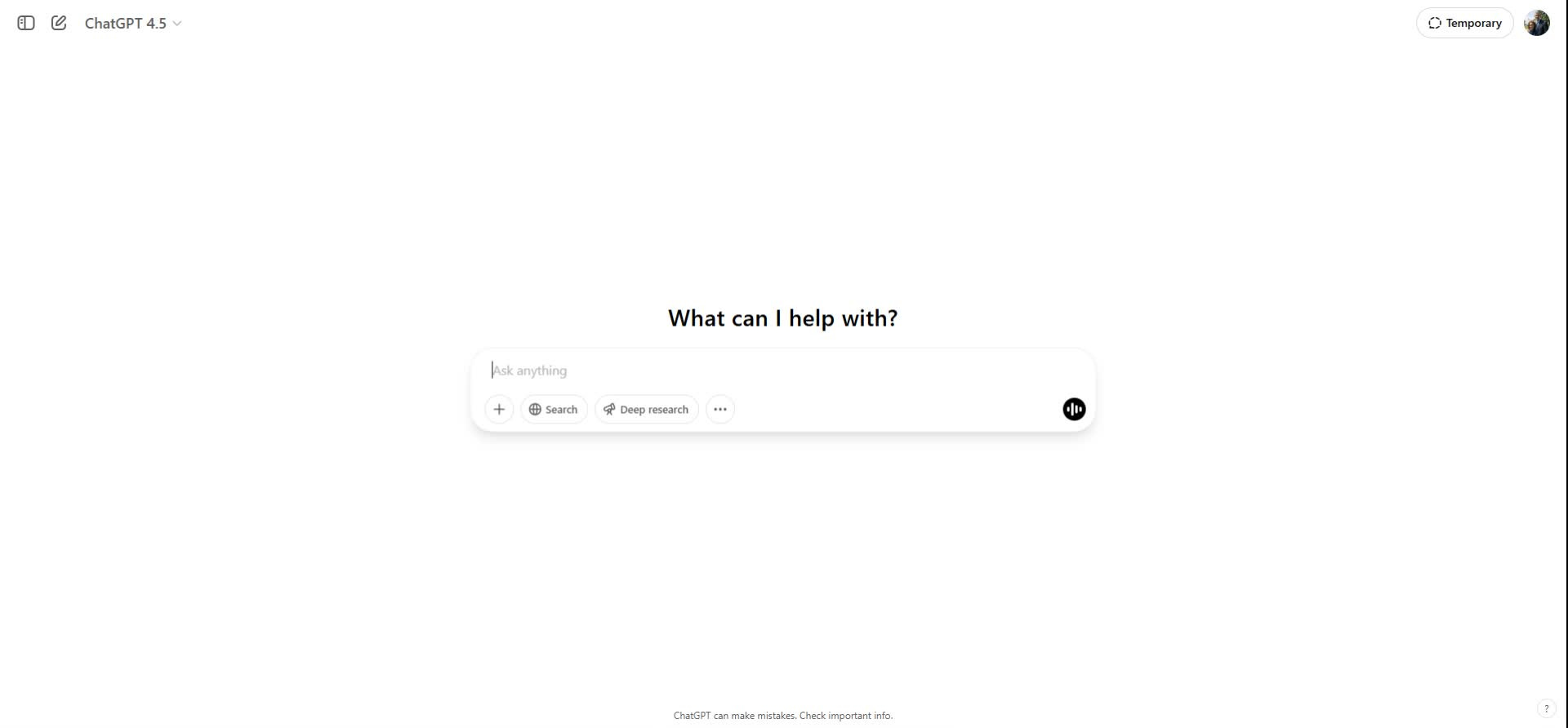
Copy and paste it in to chat GPT. [other AI didn’t do as good of a job creating the simple menus]. Copy your customized prompt and paste it in to the prompt at chat.openai.com then hit enter.
Grocery list in under 2 minutes:
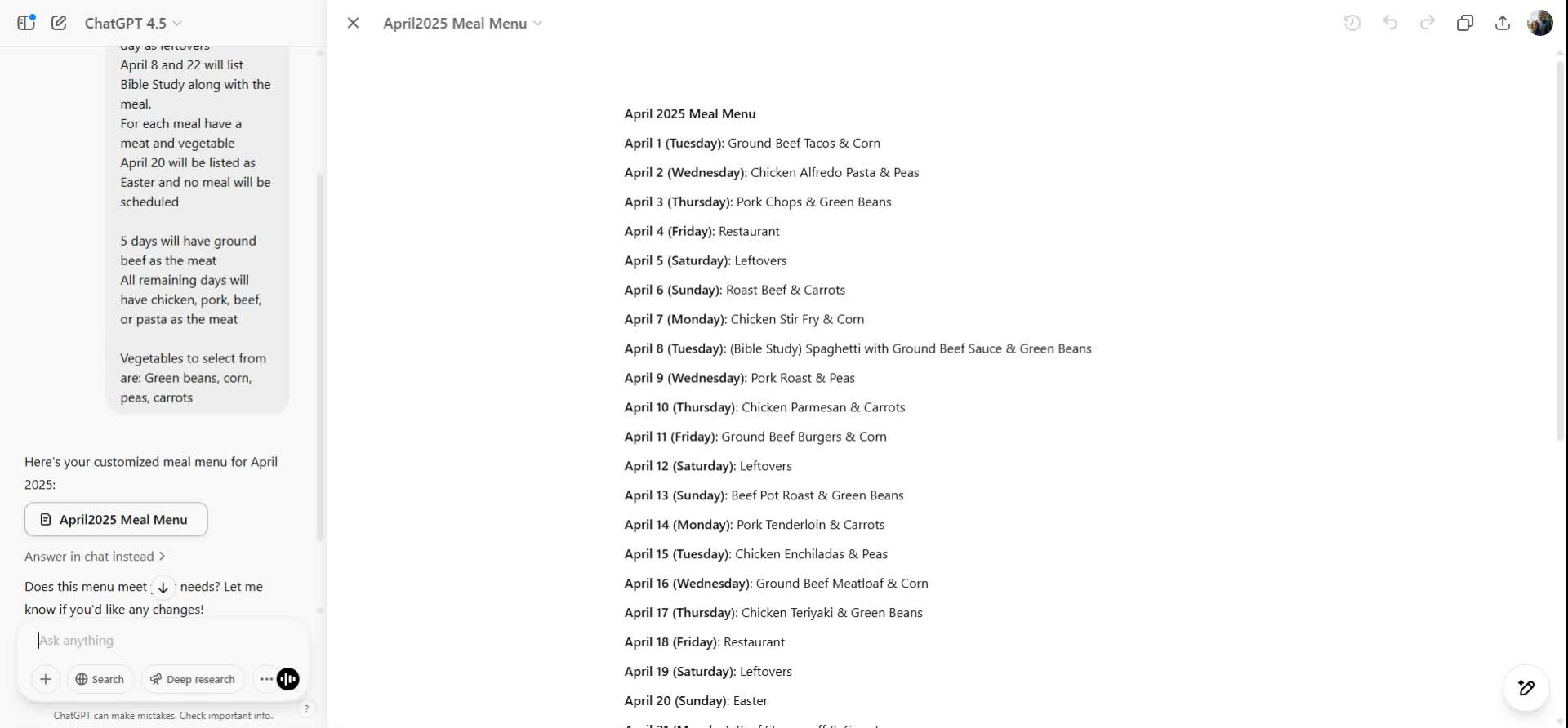
It will print a simple menu for each day. Print off the menu [or save it as a word document]. To create your grocery list:
If you print it, put a checkmark by things you have, circle things you need.
If you are leaving it in a document, highlight things you need to buy.
Then I order my groceries for pickup or delivery.
By knowing each day what I need to get out of the freezer and each week what I need to buy at the grocery, I save hundreds by not buying impulse meals, take out, or wasting food.
Share your time and moneysaving tips and recipes in the comments!!
If you’d like a more step by step guide, I have a picture guide and at the bottom there is a link to the video.
Monthly Meal Planning and Grocery List Creation
Key Steps
Step 1: Use my provided Meal Menu Prompt 0:02
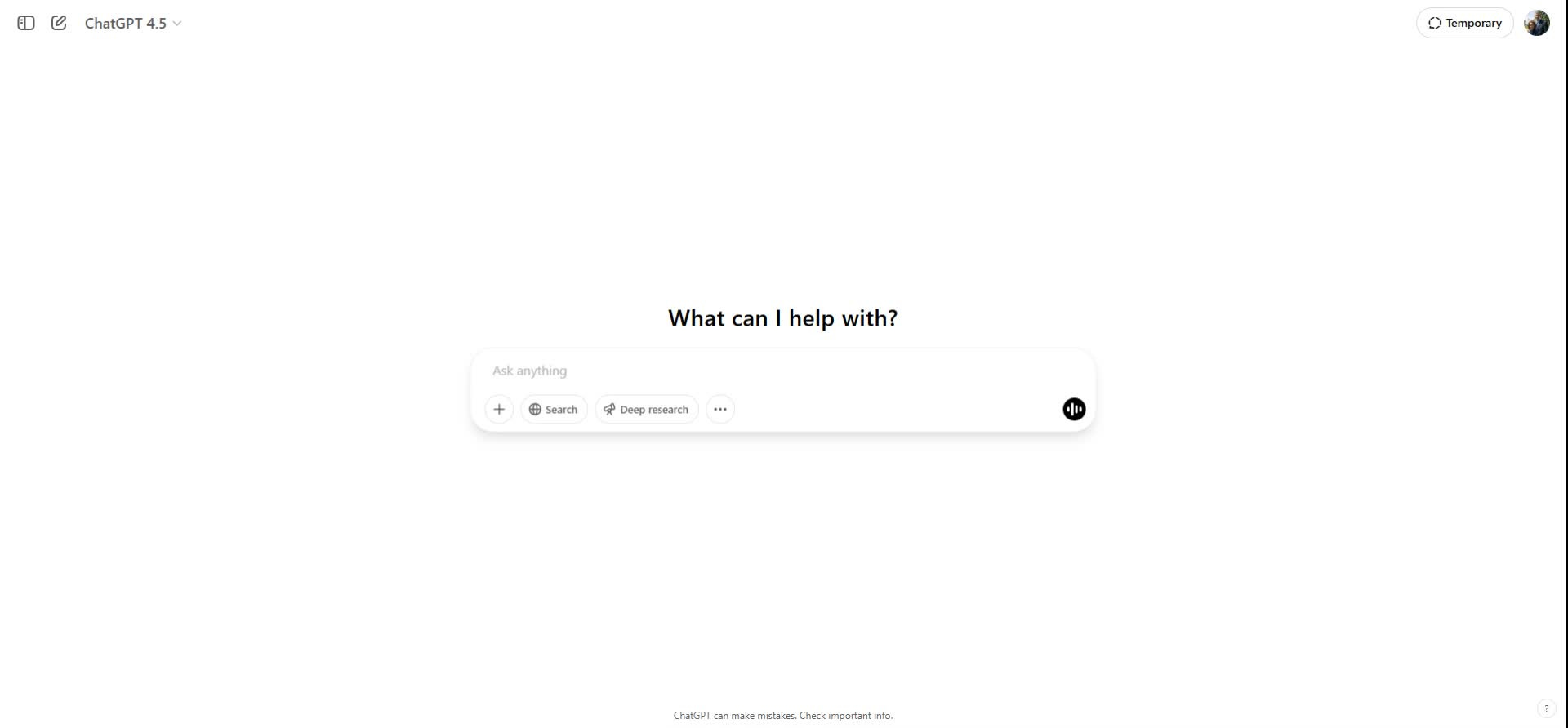
Use the prompt: "Create a meal menu for the month of April 2025".
Edit the prompt by replacing the placeholders in brackets with your specific dates and events.
Step 2: Customize Your Meal Plan 0:20
Identify any planned events (e.g., date nights, Bible studies, kids events) and note them for meal planning if you are eating at a restaurant or other place, so no menu is planned that day.
Adjust the meal plan for special occasions where you don't need a meal planned.
Step 3: Inventory Your Ingredients 0:45
Check your freezer and pantry for available ingredients (e.g., ground beef).
Note the quantities of items you have on hand.
Step 4: Modify the Meal Plan 1:01
Change the specifics in the meal plan based on your inventory and preferences.
You can delete the placeholders or keep them. This should take you under a minute.
Step 5: Use ChatGPT for Menu Generation 1:09
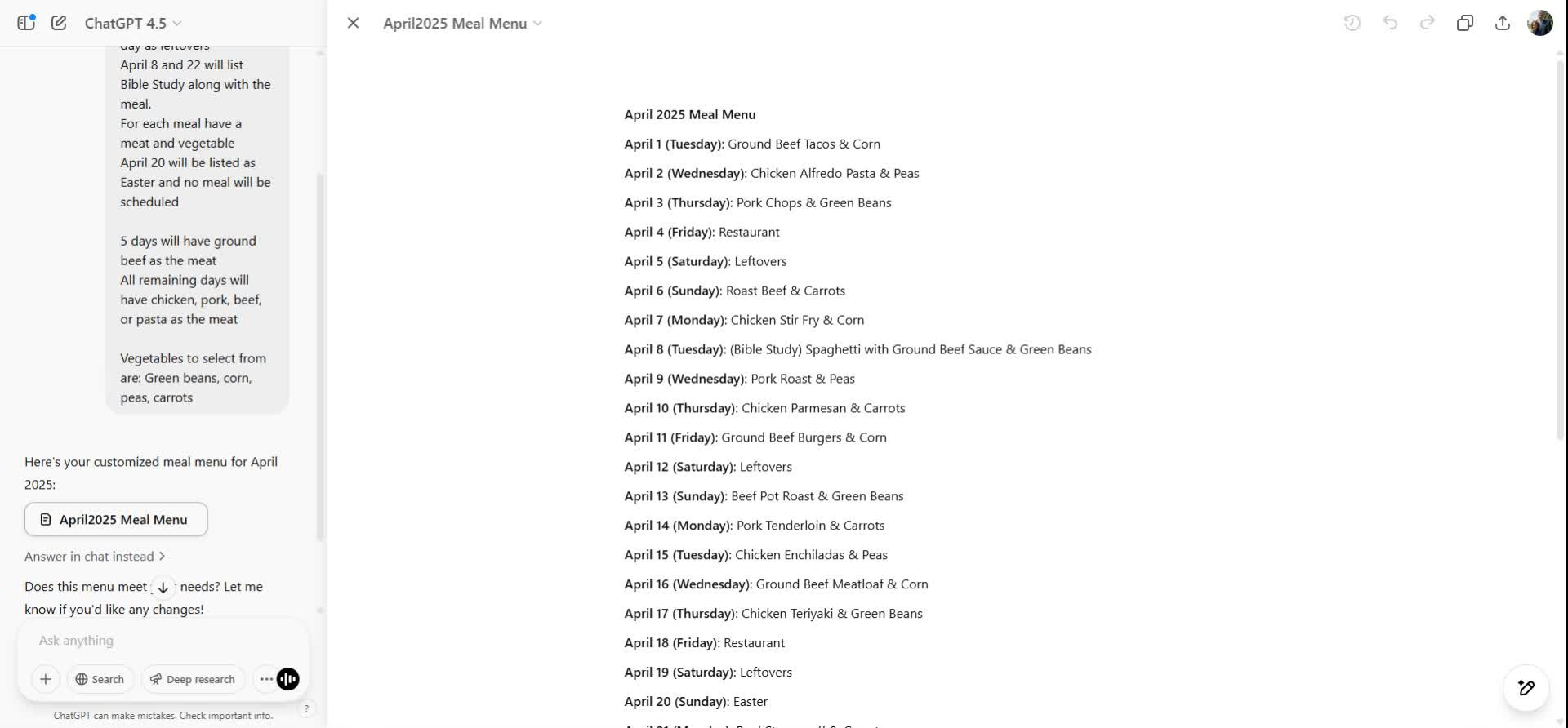
Copy your customized meal plan and paste it into ChatGPT.
Allow ChatGPT to generate a customized menu based on your input.
Step 6: Review the Generated Menu 1:37
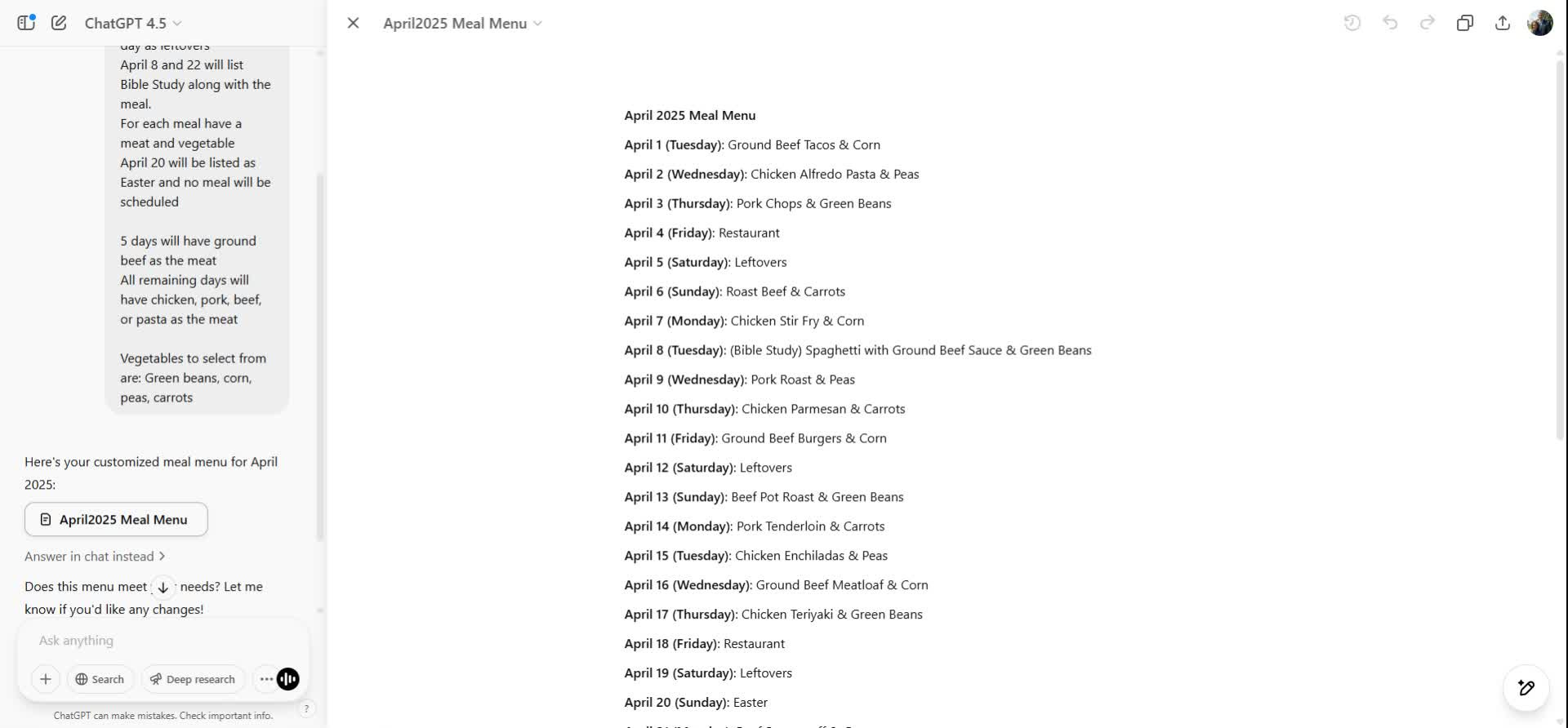
Check the menu for simplicity and variety (e.g., ground beef tacos, leftover days).
Adjust any meals that do not fit your preferences.
Step 7: Create a Grocery List 2:21
Review the generated menu and compare it with your inventory.
Create a shopping list based on what you need to buy. Simply check off what you have, circle what you need. That makes this extremely quick!
Step 8: If possible, order Groceries 2:43
Use a grocery delivery service (e.g., Instacart) or go to the grocery store.
Consider picking up groceries instead of delivery to save money over delivery fees.
Step 9: Repeat Monthly 3:20
At the beginning of each month, repeat this process to create a new meal plan.
Cautionary Notes
Double-check your inventory before finalizing your grocery list to avoid overbuying.
Be flexible with your meal plan to accommodate any last-minute changes or preferences. In fact, I typically have 2 days each month I don't plan meals to accommodate unexpected changes.
Tips for Efficiency
Set aside a specific time each month to complete this meal planning process.
Keep a running list of favorite meals to easily incorporate them into future plans.
Use seasonal ingredients to save money and enhance meal variety.
Link to Loom
I created a video to show you how simple this process is, if you prefer video.
This is gold! I felt my meal prep anxiety go down while reading this. Thank you.
Something I’ve been messing around with is uploading my favorite health books and cookbooks into a GPT, so when I ask it to make meals or ask it questions it’s pulling from the books.
I’m going to use what you shared in this article. Thank you